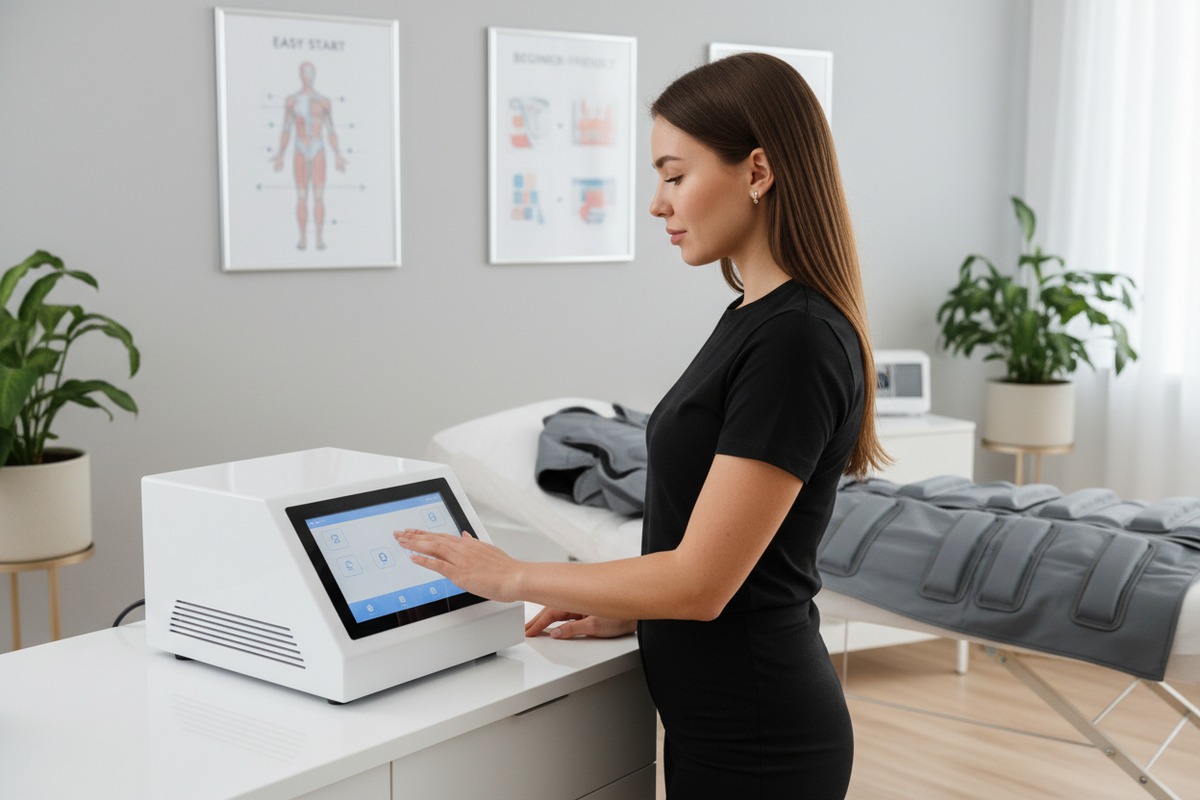
Every year, our production team sees brand owners struggle with a common challenge: their beginner technicians cannot operate pressotherapy machines 1 efficiently. The root cause? Confusing interfaces. When students fumble with controls, training times stretch. Error rates climb. Customer confidence drops. This is the problem we solve daily in our factory.
To evaluate if a pressotherapy machine interface is intuitive for beginner students, test how quickly a novice can complete a treatment session without a manual. Measure error rates, setup time, and user satisfaction. Prioritize clear icons, preset programs, visual feedback, and minimal steps from power-on to first treatment.
The interface can make or break the training experience. Below, we break down specific criteria you should use to assess touchscreen clarity, custom UI options, software features, and interface responsiveness. Each section gives you actionable steps and tools to evaluate machines before you buy or recommend them to your downstream salons.
When we calibrate interfaces during development, one thing becomes obvious: icons that look logical to engineers often confuse first-time users. Icon design is not about aesthetics. It is about instant recognition. If your students hesitate at a symbol, training slows down and mistakes happen.
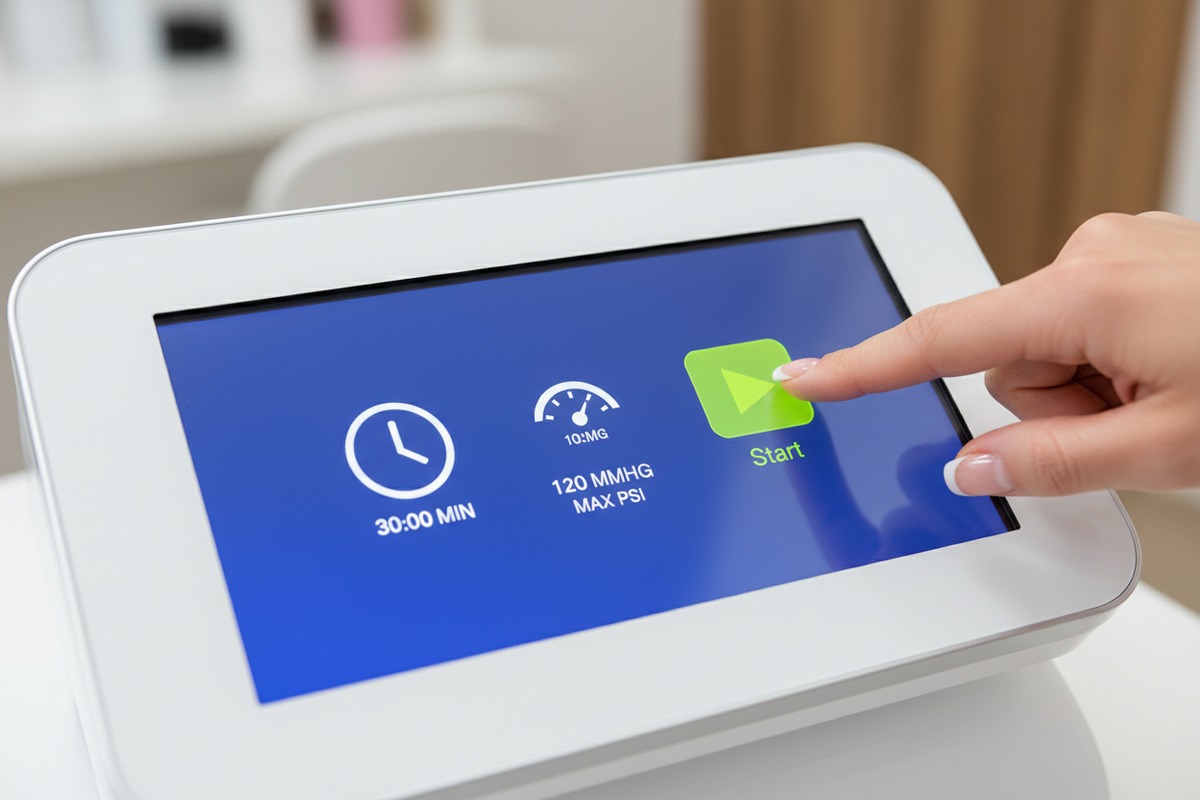
Clear touchscreen icons should allow beginner students to identify functions in under two seconds. Use a "five-second test" where students view the screen briefly and explain each icon. Icons for start, stop, time, and pressure must be universally recognizable. Visual feedback like color changes confirms actions.
The Five-Second Test
The simplest method to test icon clarity is the five-second test. Show your student the home screen for five seconds. Then ask them to name each function. If they cannot identify core icons—start, stop, time adjustment, pressure level—the design fails.
Key Icon Characteristics
Icons must meet three standards:
- Universal recognition. A play button looks like a triangle. A stop button is a square. These shapes need no explanation.
- Size and spacing. Small icons cause mis-taps. Large icons with 10mm+ spacing reduce accidental presses.
- Color coding. Green for go, red for emergency, blue for settings—this creates a visual language students learn fast. Color coding 2
Icon Evaluation Table
| Icon Type | Pass Criteria | Fail Criteria |
|---|---|---|
| Start/Stop | Universally recognized shape (triangle/square) | Abstract or custom symbols |
| Timer | Clock face or digital numbers | Vague hourglass shapes |
| Pressure | Numeric display with clear units (mmHg/kPa) | Unlabeled slider bars |
| Mode Selection | Text labels plus icons | Icons alone without labels |
| Emergency Stop | Red, large, always visible | Hidden in menu |
Visual Feedback Matters
Icons alone are not enough. The interface must confirm actions. When a student presses "Start," the icon should light up or change color. Without this feedback, students question whether the machine registered their input. This creates hesitation and errors.
Testing Without the Manual
The true test is this: can a student with zero experience power on the machine and start a 20-minute leg treatment within five minutes? If yes, the icons are clear. If they need the manual, the design needs improvement.
Can I request a custom UI design from my supplier to simplify the treatment settings for my brand's training program?
Our engineering team receives custom UI requests every month. Brand owners want interfaces that match their training protocols. The good news? This is absolutely possible. OEM and ODM services 3 now include software customization, not just logos and machine housings.
Yes, you can request custom UI design from your supplier. Reputable manufacturers offer touchscreen interface customization including preset program names, language options, color schemes, simplified menus, and training-specific modes. Discuss requirements early in the order process for best results.

What Can Be Customized?
Modern OEM services go beyond surface-level branding. Here is what our team—and most professional manufacturers—can modify:
- Preset program names. Rename "Mode 1" to "Lymphatic Drainage 4 – Legs" so students instantly understand the purpose.
- Menu structure. Hide advanced features beginners do not need. Simplify navigation to essential functions only.
- Language settings. Support multiple languages for international training centers.
- Color themes. Match your brand colors for a professional, cohesive look.
- Default parameters. Set default time (e.g., 30 minutes) and pressure (e.g., 60 mmHg) so students do not need to adjust every session.
OEM Customization Options Table
| Customization Level | What's Included | Typical MOQ | Timeline |
|---|---|---|---|
| Basic OEM | Logo on screen + splash screen | 10 units | 2 weeks |
| Standard OEM | Custom menu labels, default settings, language | 20 units | 4 weeks |
| Full ODM | Redesigned interface, custom workflow, training modes | 50+ units | 8-12 weeks |
How to Communicate Your Requirements
When you approach a supplier, provide these details:
- User profile. Who are your students? Cosmetology students? Physiotherapy interns? Each group has different needs.
- Training workflow. How do you teach? Step-by-step? Preset-only? Manual override?
- Must-have features. List functions students must access quickly.
- Must-hide features. List advanced options that confuse beginners.
Cost Considerations
Custom UI development is not free. Expect design fees ranging from $500 to $3,000 depending on complexity. However, this investment pays off when your students train faster and make fewer errors. Many suppliers waive design fees for orders above certain quantities.
Real-World Example
One of our clients requested a "Training Mode" that locked pressure to safe levels and displayed animated guides during treatment. We delivered this within six weeks. Their student error rate dropped by 40% after implementation.
What specific software features should I prioritize to minimize the learning curve for new salon technicians?
In our experience exporting to the US and European markets, we have learned that software makes or breaks the user experience. Hardware builds trust. Software builds efficiency. When evaluating machines for training environments, focus on features that guide beginners, prevent errors, and confirm actions.
Prioritize preset programs, guided setup wizards, real-time visual feedback, automatic garment recognition, error prevention prompts, and one-touch session start. These software features reduce learning curves dramatically. Avoid machines requiring manual parameter entry for every session.
Preset Programs: The Foundation
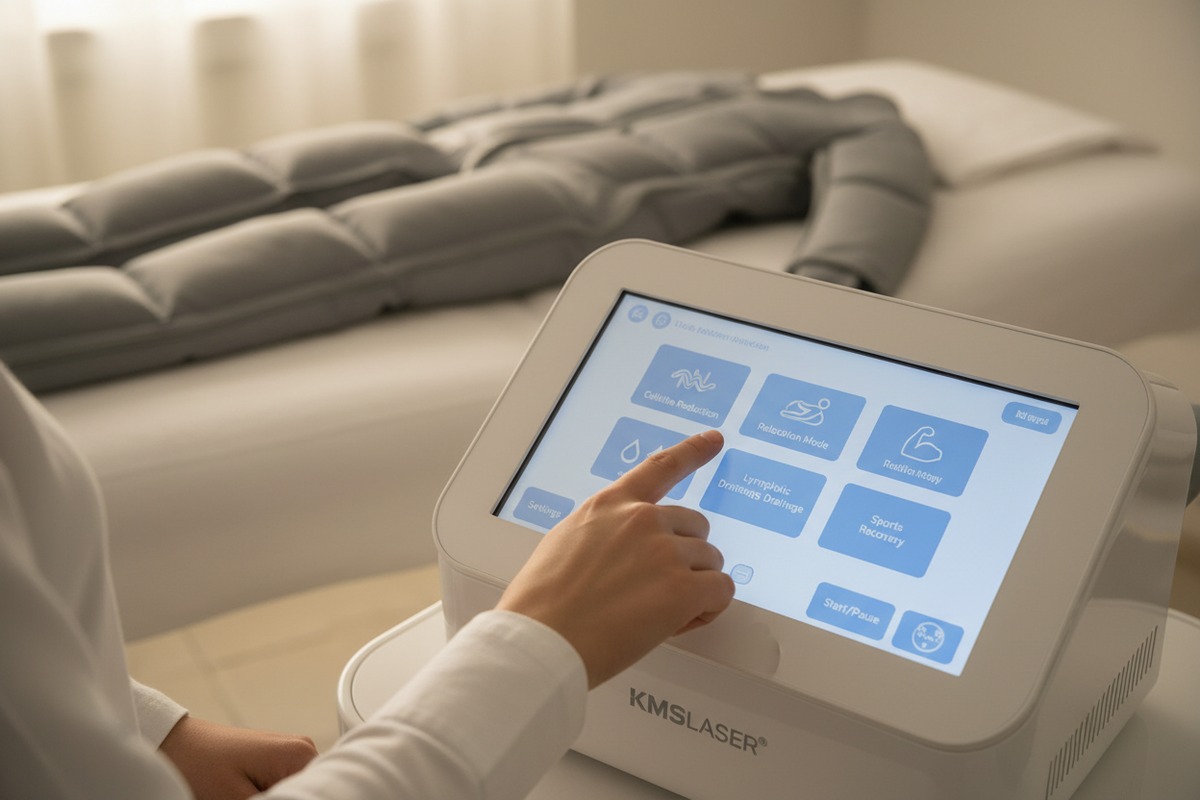
Preset programs 5 are the most important feature for beginners. Machines offering 12-25 presets by body part or condition allow students to select a treatment without deep technical knowledge. For example:
- Lymphatic drainage – legs
- Circulation boost – arms
- Post-surgical recovery – full body
- Relaxation – abdomen
Students press one button. The machine handles time, pressure, and inflation sequence.
Guided Setup Wizards
Advanced machines now include first-use wizards. These step-by-step prompts walk students through:
- Connecting garments
- Selecting body area
- Choosing treatment goal
- Confirming parameters
- Starting session
This feature eliminates the need for external tutorials during initial training.
Visual Feedback Systems
Real-time displays showing the current inflation chamber, pressure level, and time remaining help students understand what the machine is doing. Animated diagrams illustrating which body zone is active reduce confusion.
Feature Priority Table
| Feature | Priority for Beginners | Why It Matters |
|---|---|---|
| Preset Programs | Critical | Eliminates manual setup |
| One-Touch Start | Critical | Reduces steps to begin treatment |
| Guided Wizards | High | Supports first-time users |
| Real-Time Visual Feedback 6 | High | Confirms machine actions |
| Auto Garment Recognition | Medium-High | Reduces connection errors |
| Error Prevention Prompts | Medium-High | Warns before mistakes |
| User Profiles | Medium | Saves preferred settings |
| Multi-Language Support | Medium | Supports diverse teams |
| Remote Updates | Low | Adds features over time |
Error Prevention Prompts
Machines should alert users before problems occur. Examples include:
- "Garment not connected properly."
- "Selected pressure exceeds safe level for this mode."
- "Session will end in 5 minutes."
These prompts prevent accidents and build student confidence.
Auto Garment Recognition
High-end machines detect which garments are connected and configure settings automatically. If a student attaches leg sleeves, the machine suggests leg-focused programs. This reduces setup time and human error.
System Usability Scale (SUS) Benchmark
Industry standards suggest that intuitive interfaces should score above 80 on the System Usability Scale 7. Survey your students after training sessions. Scores below 70 indicate significant usability issues.
How does the interface responsiveness affect the overall perceived quality of the machine for my downstream customers?
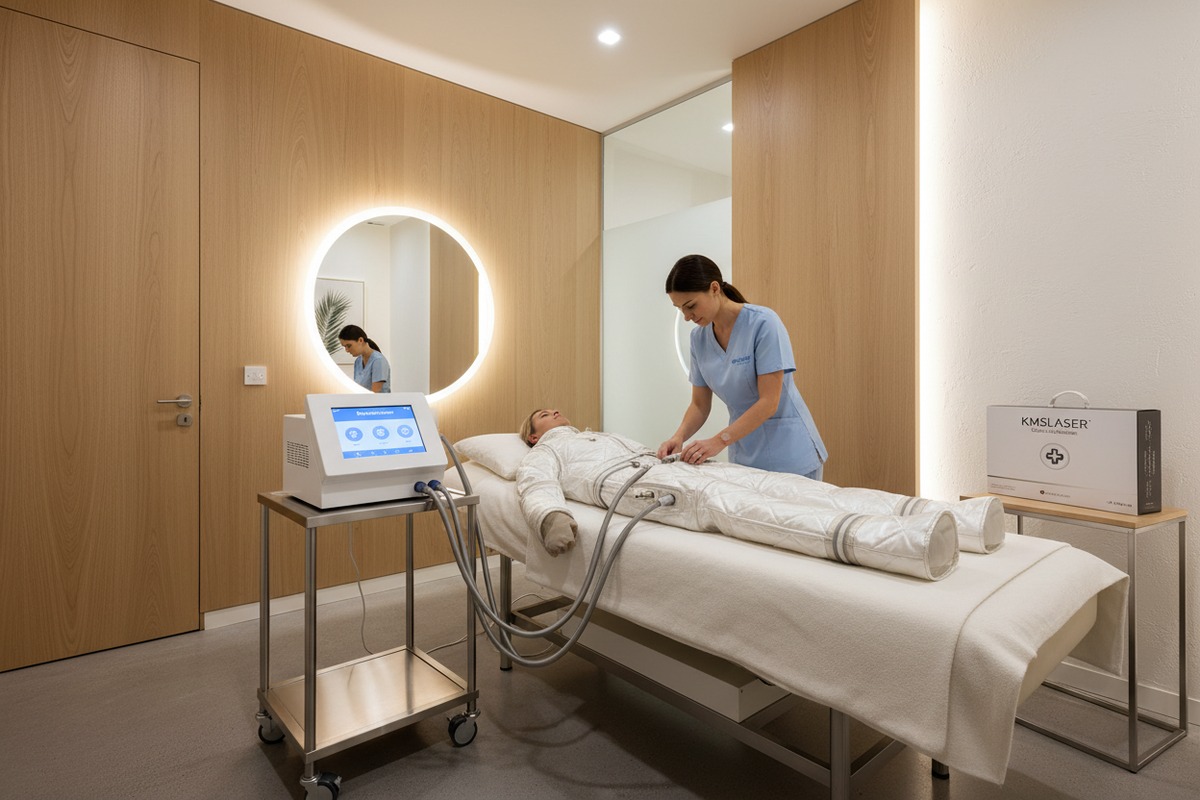
Our quality control team tests every machine before shipment. One finding is consistent: customers associate interface responsiveness with overall machine quality. Lag creates doubt. Smooth interactions build trust. When your downstream salon clients tap a button and see instant feedback, they perceive value.
Interface responsiveness directly impacts perceived quality. Touch delays over 200 milliseconds feel sluggish and unprofessional. Fast, fluid screens signal premium craftsmanship. Downstream customers judge entire machines by interface speed, even when internal components are identical.
The 200-Millisecond Rule
Research on human-computer interaction 8 shows that delays under 100ms feel instant. Delays between 100-200ms are acceptable. Anything over 200ms feels noticeably slow. For medical and aesthetic equipment, slow interfaces erode professional credibility.
Why Responsiveness Matters to Downstream Clients
Salon owners are your downstream customers. They interact with dozens of devices daily. They compare your pressotherapy machine to smartphones, tablets, and other modern equipment. If your machine's touchscreen stutters, they assume the entire device is outdated or cheap.
Responsiveness Evaluation Checklist
Test these interactions during evaluation:
- Screen wake time. From sleep to active should be under 1 second.
- Touch registration. Every tap should register on the first attempt.
- Menu transition. Moving between screens should be smooth, not jerky.
- Input feedback. Button presses should show visual response within 100ms.
- Scroll behavior. Scrolling through presets should feel natural, not choppy.
Responsiveness vs. Price Table
| Price Range | Typical Screen Quality | Expected Responsiveness |
|---|---|---|
| Under $500 | Resistive touchscreen | 300-500ms delay, requires pressure |
| $500-$1,500 | Basic capacitive | 150-250ms delay, acceptable |
| $1,500-$3,000 | Quality capacitive | Under 150ms, smooth |
| Over $3,000 | Premium capacitive | Under 100ms, flagship quality |
Hardware Considerations
Responsiveness depends on three factors:
- Processor speed. Faster chips mean smoother interfaces.
- Screen technology. Capacitive screens outperform resistive screens.
- Software optimization. Well-coded software maximizes hardware performance.
The Perception-Quality Connection
In B2B sales, perception drives decisions. When your salon clients unbox a machine, the interface creates the first impression. A responsive screen signals that the manufacturer invested in quality throughout—not just visible components. This justifies your price point and reduces buyer remorse.
Testing During Purchase
Before committing to a supplier, request a video demonstration or sample unit. Navigate every menu. Test every button. A few minutes of hands-on evaluation reveals what spec sheets cannot.
Conclusion
Evaluating pressotherapy machine interfaces for beginner students requires testing icon clarity, exploring custom UI options, prioritizing the right software features, and demanding responsive screens. Use the frameworks and tables above to guide your purchasing decisions and set your downstream clients up for training success.
Footnotes
1. Replaced HTTP 404 link with an authoritative overview of pressotherapy, including how pressotherapy machines work, from Healthline. ↩︎
2. Explains color theory and its core principles, relevant to interface design and visual language. ↩︎
3. Differentiates OEM and ODM services, outlining their roles in manufacturing and product development. ↩︎
4. Describes lymphatic drainage massage, its purpose, and benefits for the lymphatic system. ↩︎
5. Highlights usability principles, including ease of use and learnability, supported by preset programs. ↩︎
6. Discusses user interface design principles, including the importance of feedback for user interaction. ↩︎
7. Explains the System Usability Scale (SUS) as a standardized tool for assessing usability. ↩︎
8. Defines human-computer interaction as a multidisciplinary field focusing on user-computer interfaces. ↩︎

 English
  Español de México
  Deutsch
  Français
  العربية
  Русский